








0 - From any app
Start where your photos already are.
Select one photo or several in Photos, Files or another app. Tap Share, choose ShareReady, and continue without starting over somewhere else.
The step between Share and shared.
Built into the Share button
Crop, sign, anonymize and convert. One flow, right from the Share button.
0 - From any app
Select one photo or several in Photos, Files or another app. Tap Share, choose ShareReady, and continue without starting over somewhere else.
The step between Share and shared.
1 - Your setup, remembered
Choose Instagram, WhatsApp, AirDrop or your own setup. ShareReady remembers the crop, format, quality and branding you use there.
2 - One fast flow
The rules are already applied. Move through the selection and adjust only what differs from photo to photo.
3 - Keep the composition
Use the format the platform needs without letting it decide what gets cut off.
4 - Make every share work for you
Add your signature or logo across the selection, then place it where it fits on each photo.
Make your work recognizable wherever it travels.
5 - Review before it leaves
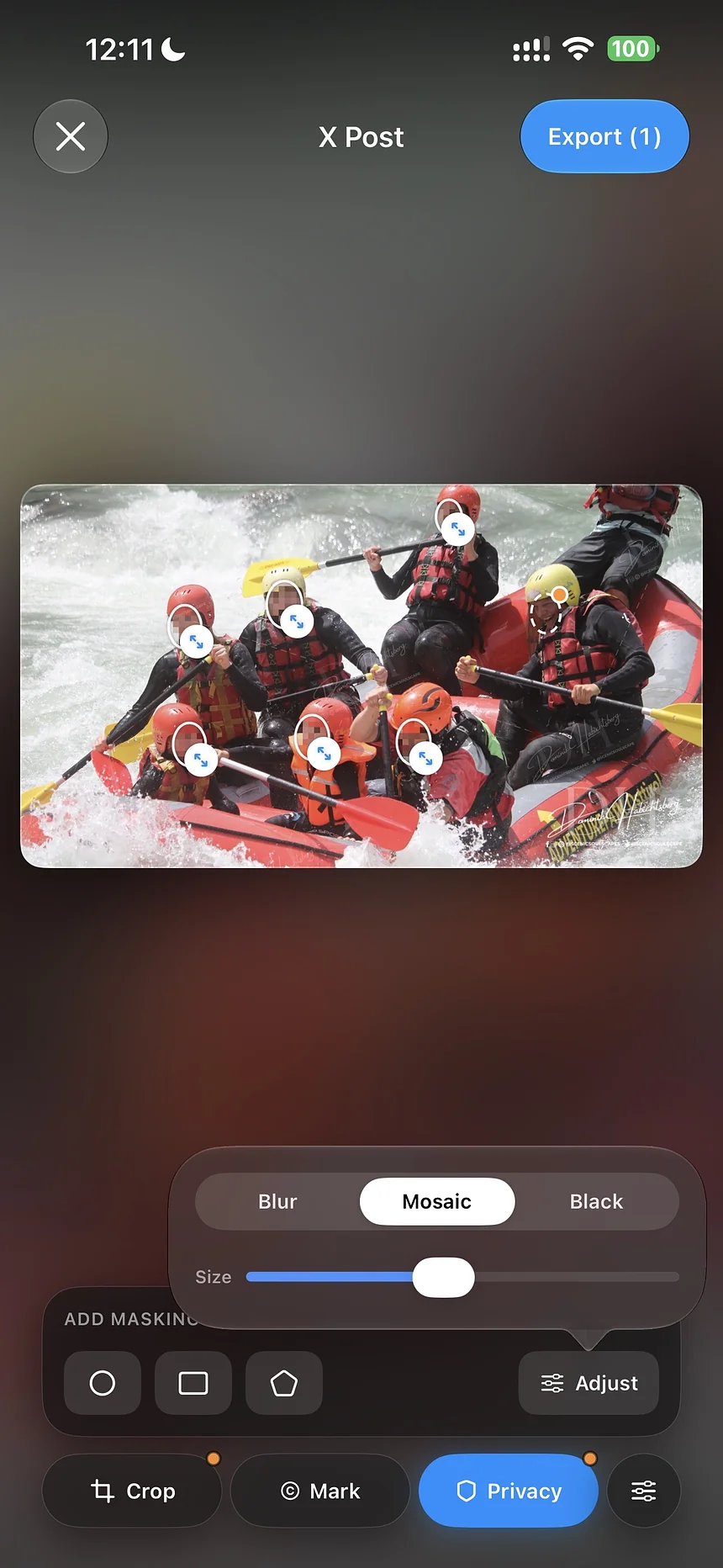
Faces and plates are flagged for review. You decide what disappears before anything leaves your phone.
6 - The file you actually need
AirDrop a usable JPG instead of a 40 MB RAW. Convert HEIC, resize for the web, and leave the source untouched.
DNG · 40.2 MBJPG · 2.4 MB
7 - Done? Go again
Start the next export of the same batch right from the finish screen. Your watermark and privacy choices carry over, and you adjust only what the next platform needs.
8 - Your photo library stays yours
ShareReady doesn’t save every cropped, signed or anonymized version back to your photo library.
No resized copy. No branded copy. No blurred copy left behind in Photos.
9 - Nothing piles up
ShareReady clears working copies automatically after a short time. Keep a set longer only when you decide to.
ShareReady processes them locally. Nothing is uploaded, your originals are never altered, and you review exactly what will be shared.
Exports are rebuilt for sharing, so embedded location and camera information do not travel with them.

Creators & photographers
Sign photos, control every crop, and make each share promote your brand.

Sellers & marketplaces
Hide plates, add your name, use the right crop, and move through the entire selection quickly.

Teams & organisations
Add your brand and review faces or plates before company photos go public.

Everyday sharing
Convert RAW or HEIC, AirDrop a usable JPG, and keep your Photos library clean.
Yes. ShareReady works with one photo or a larger selection.
No. Photo processing happens on the iPhone.
No. The original files in Apple Photos remain untouched.
No. Shared versions are not automatically added to Apple Photos.
Working copies are temporary by default and are cleared automatically. A set can be kept longer when you choose.
Yes. ShareReady flags areas for review, and you decide what is hidden.
No. Settings for destinations such as Instagram, WhatsApp, AirDrop, or custom workflows can be reused.
ShareReady can create a more useful output such as JPG or PNG while leaving the source file untouched.
The core app is free: complete metadata removal, every size and format (HEIC to JPG included), whole-batch export, three destination presets, and automatic cleanup. Blur and watermark are part of ShareReady Pro.
Select the photo, tap Share, and choose ShareReady. Faces and license plates are flagged automatically. You confirm each one with a tap, paint over anything the detection missed, and see exactly what is covered before the photo goes out. Blur is a ShareReady Pro feature.
Share the photo through ShareReady. Exports are rebuilt from the pixels, so embedded location, timestamps and camera information are gone from the file. Not hidden, actually stripped. That matters most on direct channels like AirDrop, email and iMessage, where the full metadata otherwise travels with the photo.
Tap Share on the photo or a whole selection, choose ShareReady, and pick a preset that outputs JPG. Conversion runs on the iPhone, works for batches, and is part of the free core. The HEIC original stays untouched.
iOS parks newly installed apps at the far end of the share sheet, behind a long swipe. Add ShareReady to your Favorites and put it first, in eight steps with real screenshots.