iOS how-to
Add ShareReady or any app to your iPhone share sheet.
iOS parks newly installed apps at the far end of the share sheet, behind a long swipe. These eight steps add an app to your Favorites and put it first, shown with the photo app ShareReady on iOS 26. The same Edit screen customizes the rest of the share menu too: reorder your favorites, remove what you never use. The route is identical for any app in the sheet.
-
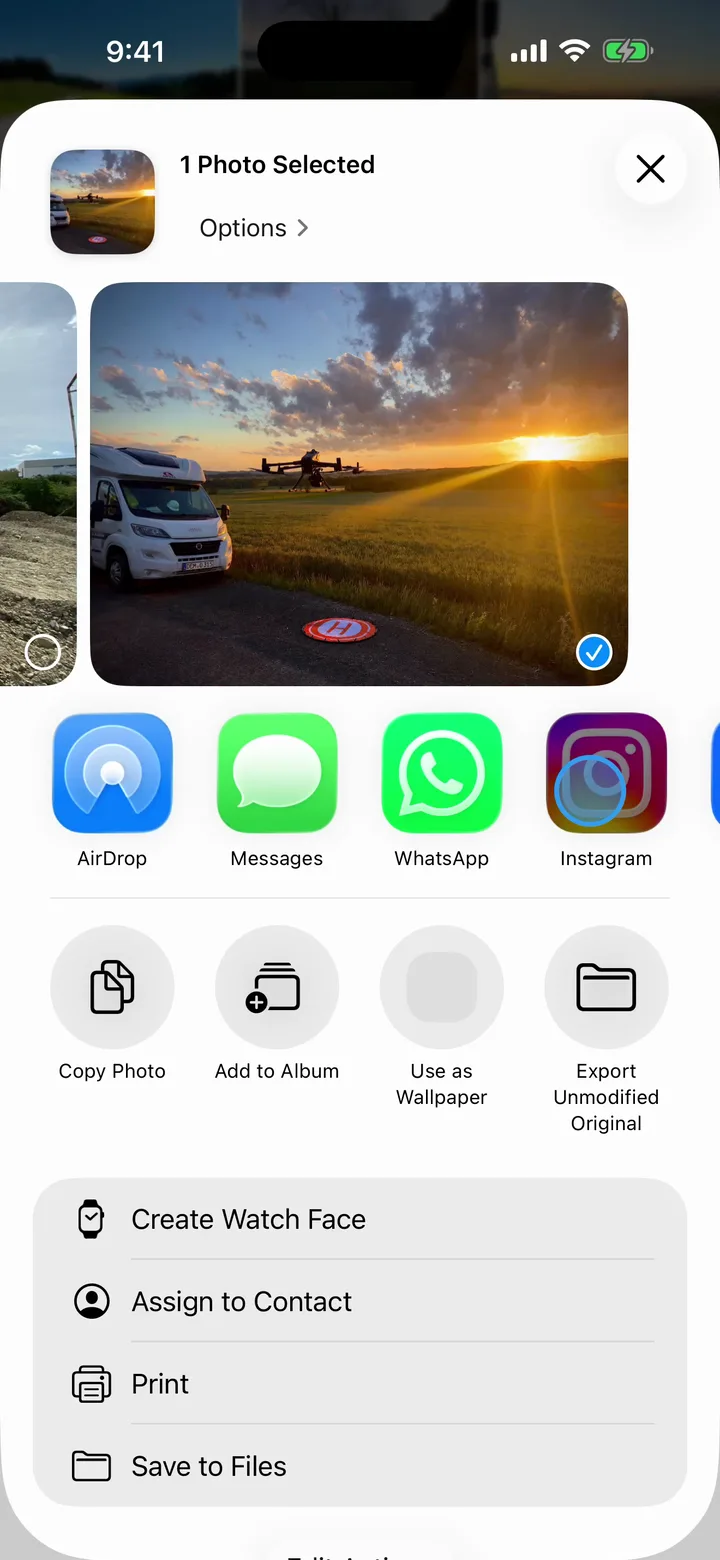
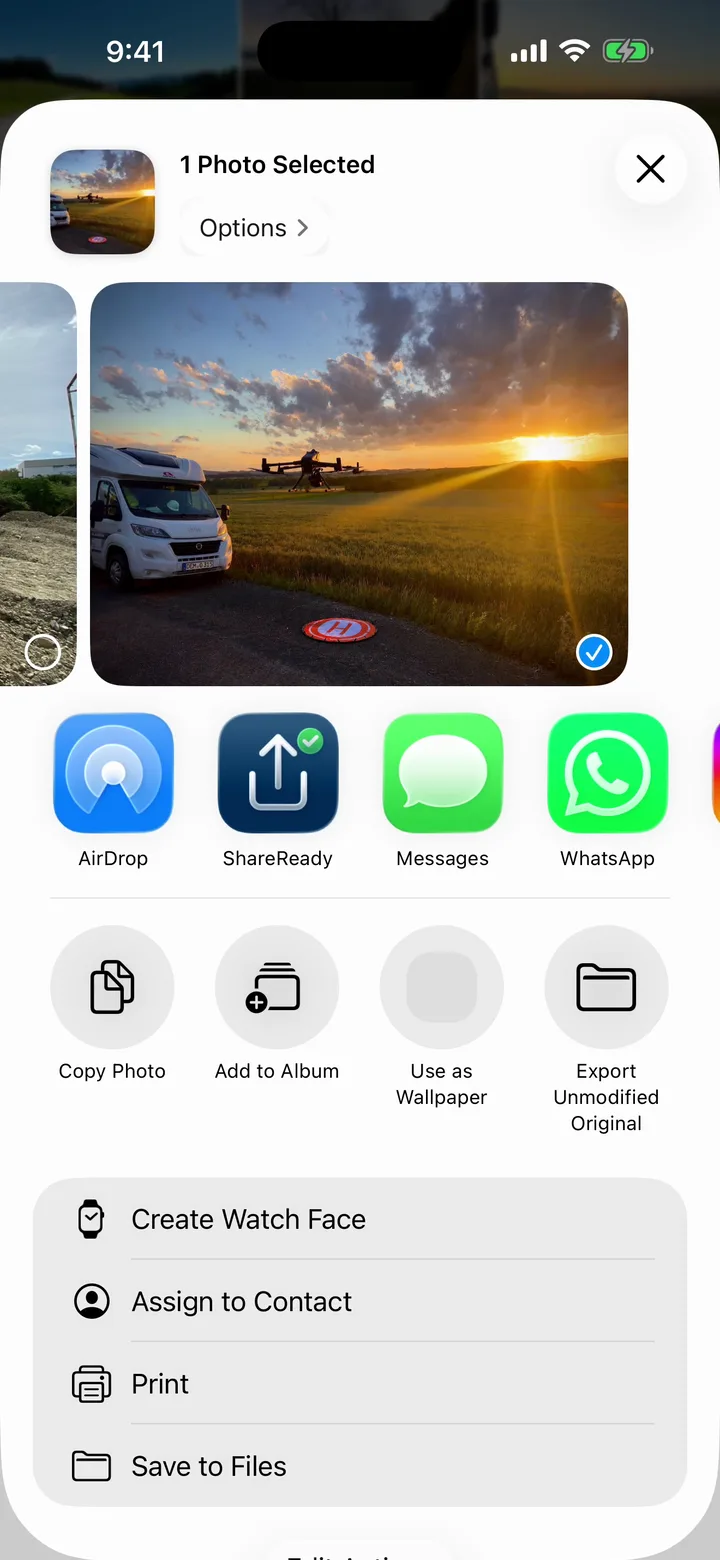
Open the share sheet.
Select a photo in Photos or any other app, then tap the Share button. Under the photo sits a row of app icons. Right after installing ShareReady, it is not there yet.
-
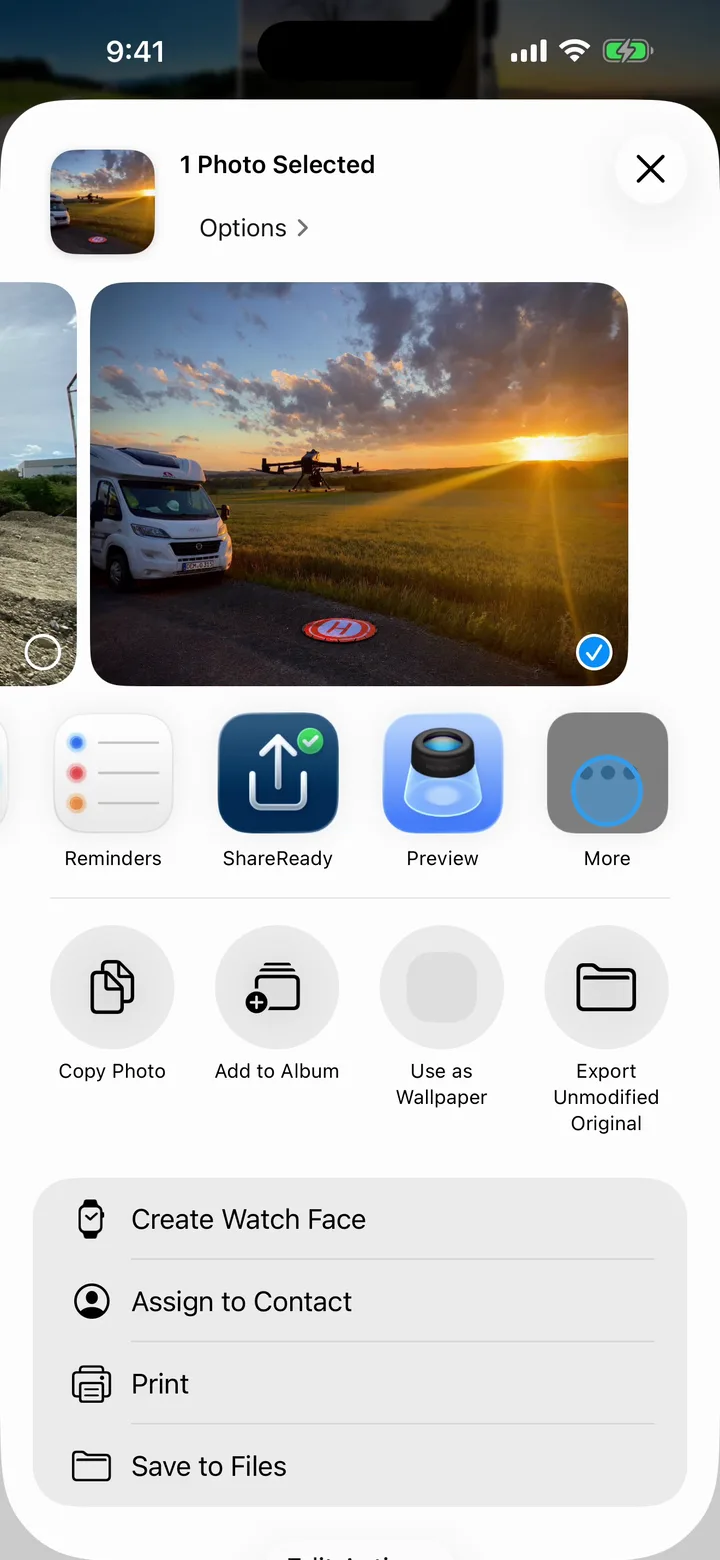
Swipe to the end of the row.
Swipe left across the icons. iOS parks newly installed apps at the far end of the row, next to More. That is where ShareReady is hiding.
-
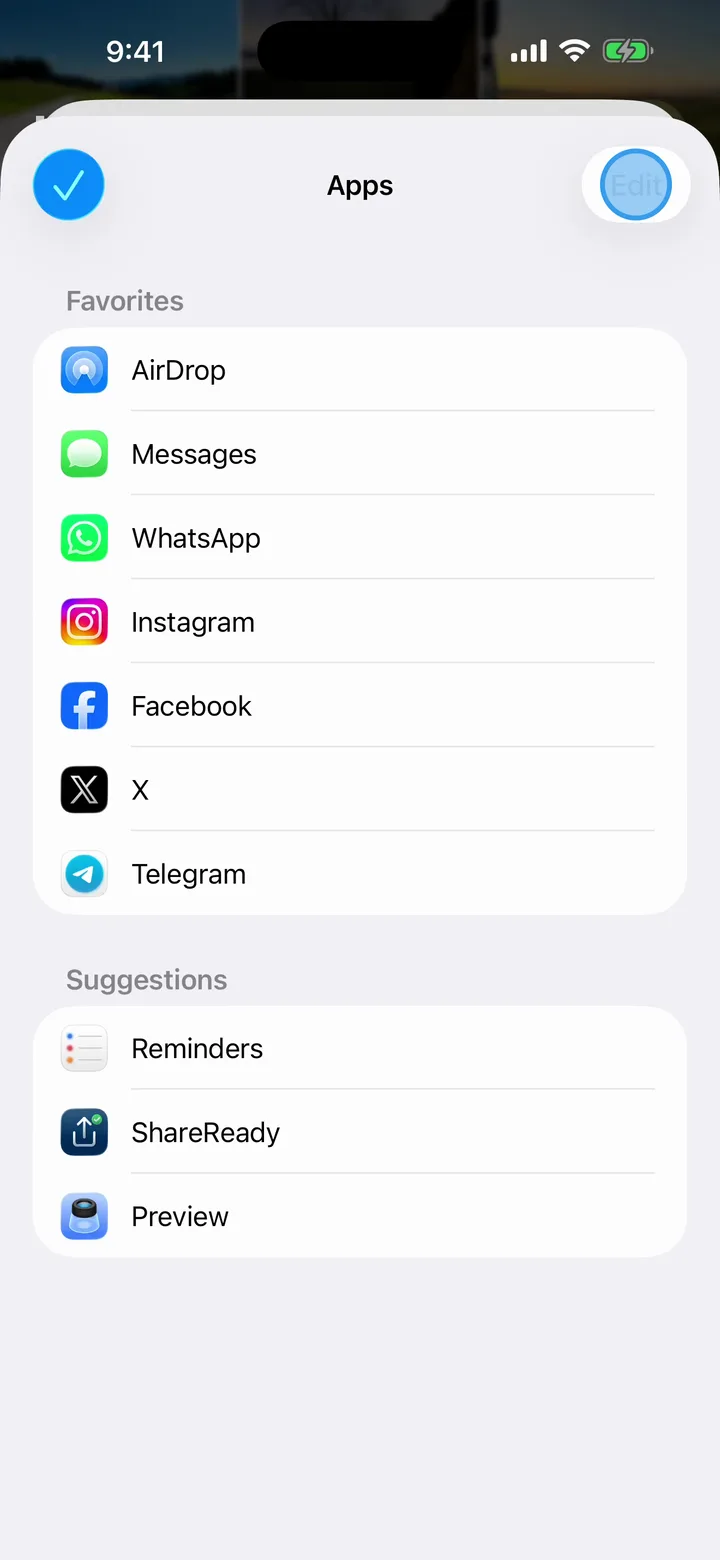
Tap More, then Edit.
More opens the Apps screen: your Favorites at the top, every other share target under Suggestions. Tap Edit in the top corner to unlock the list.
-
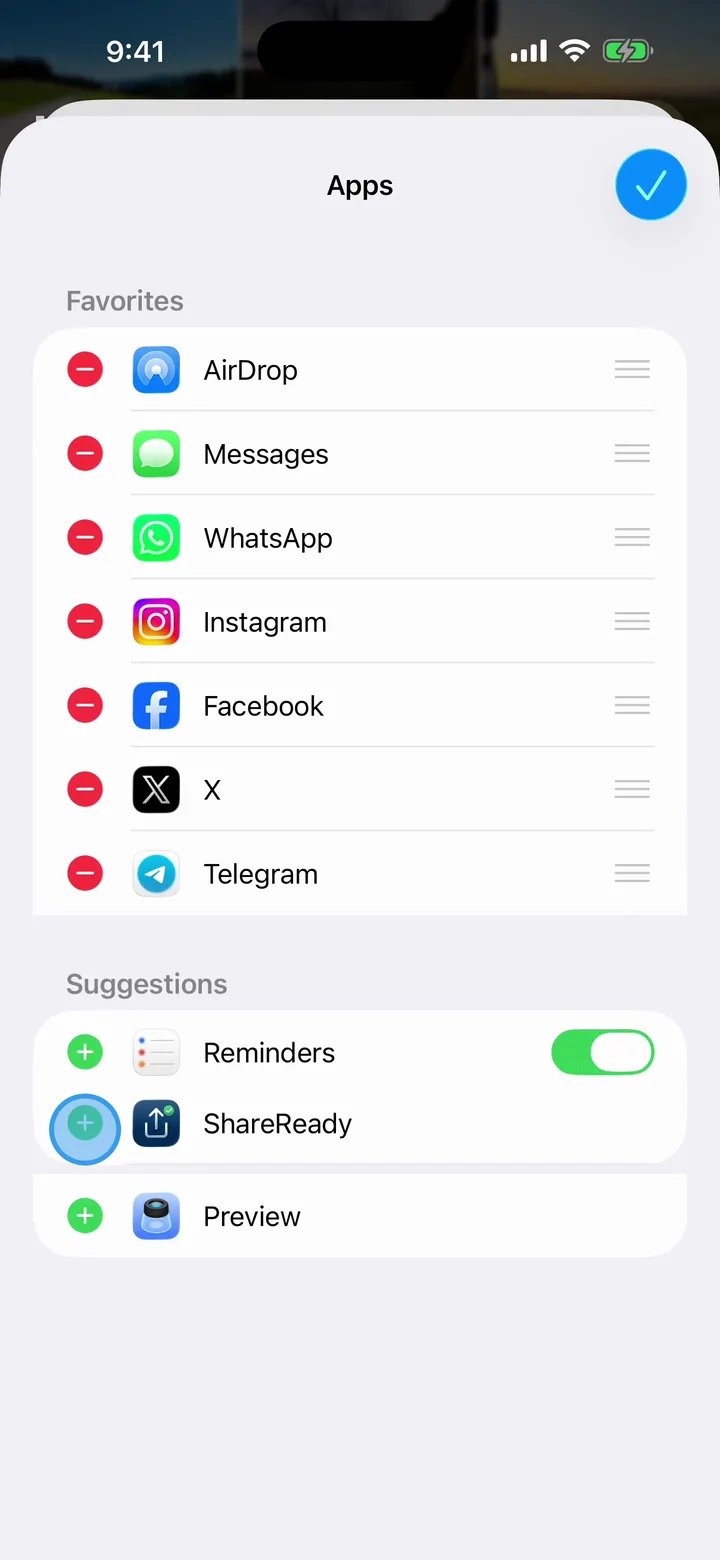
Add ShareReady to your Favorites.
In edit mode, every app under Suggestions gets a green plus. Tap the plus next to ShareReady and it joins your Favorites.
-
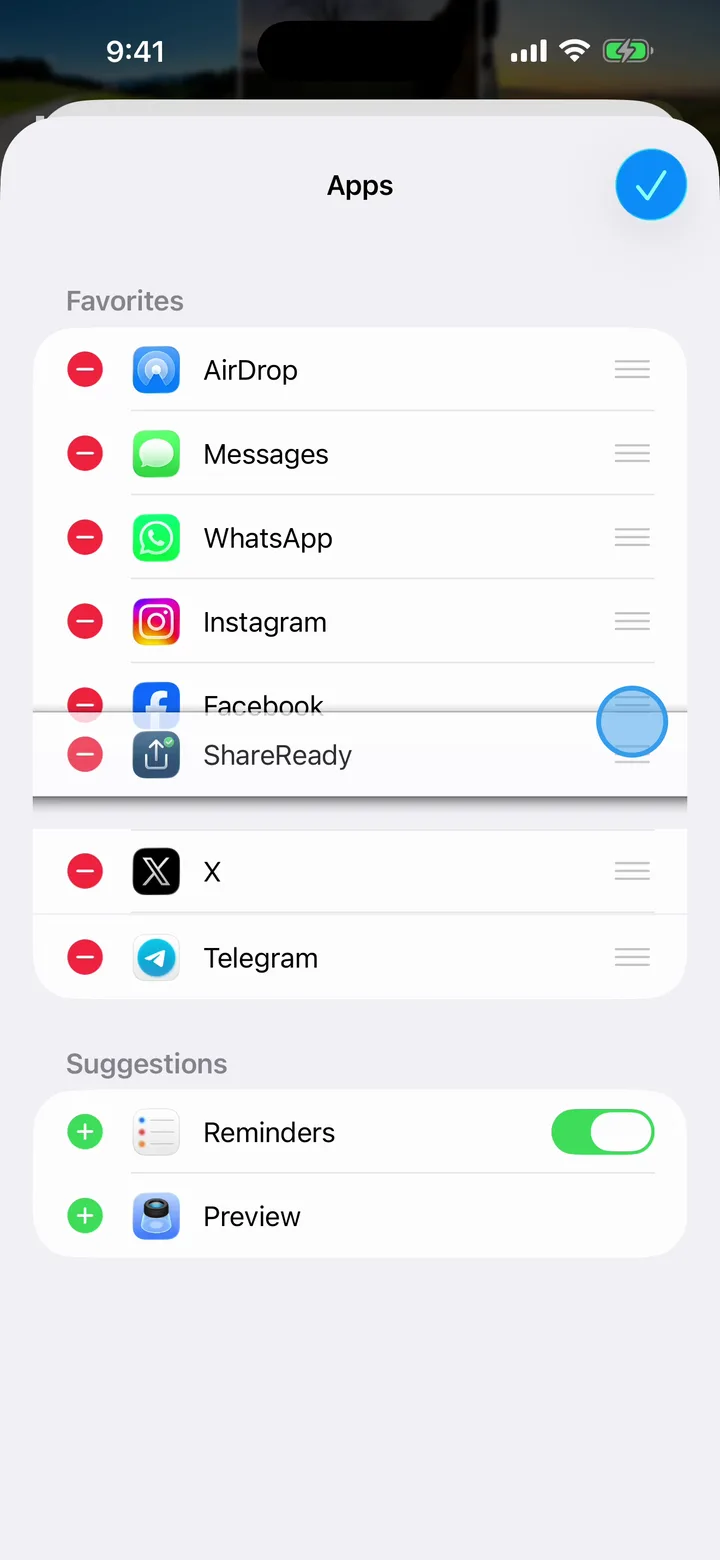
Drag it to the front.
Grab the handle on the right and pull ShareReady up the list. Favorites keep the order you give them; the higher an app sits, the earlier it appears in the share sheet.
-
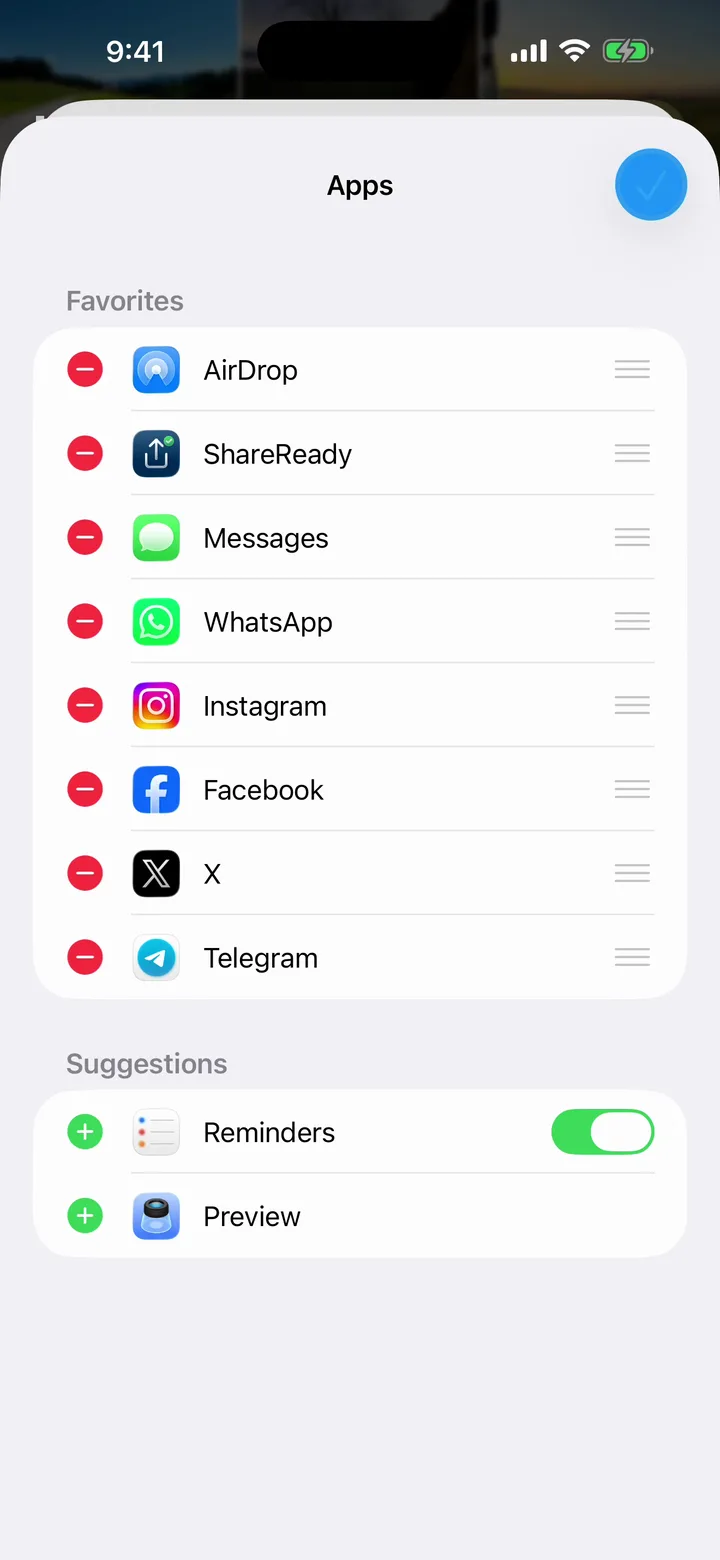
Tap the check mark.
ShareReady now sits in second place, right after AirDrop. The check mark in the top corner saves the new order.
-
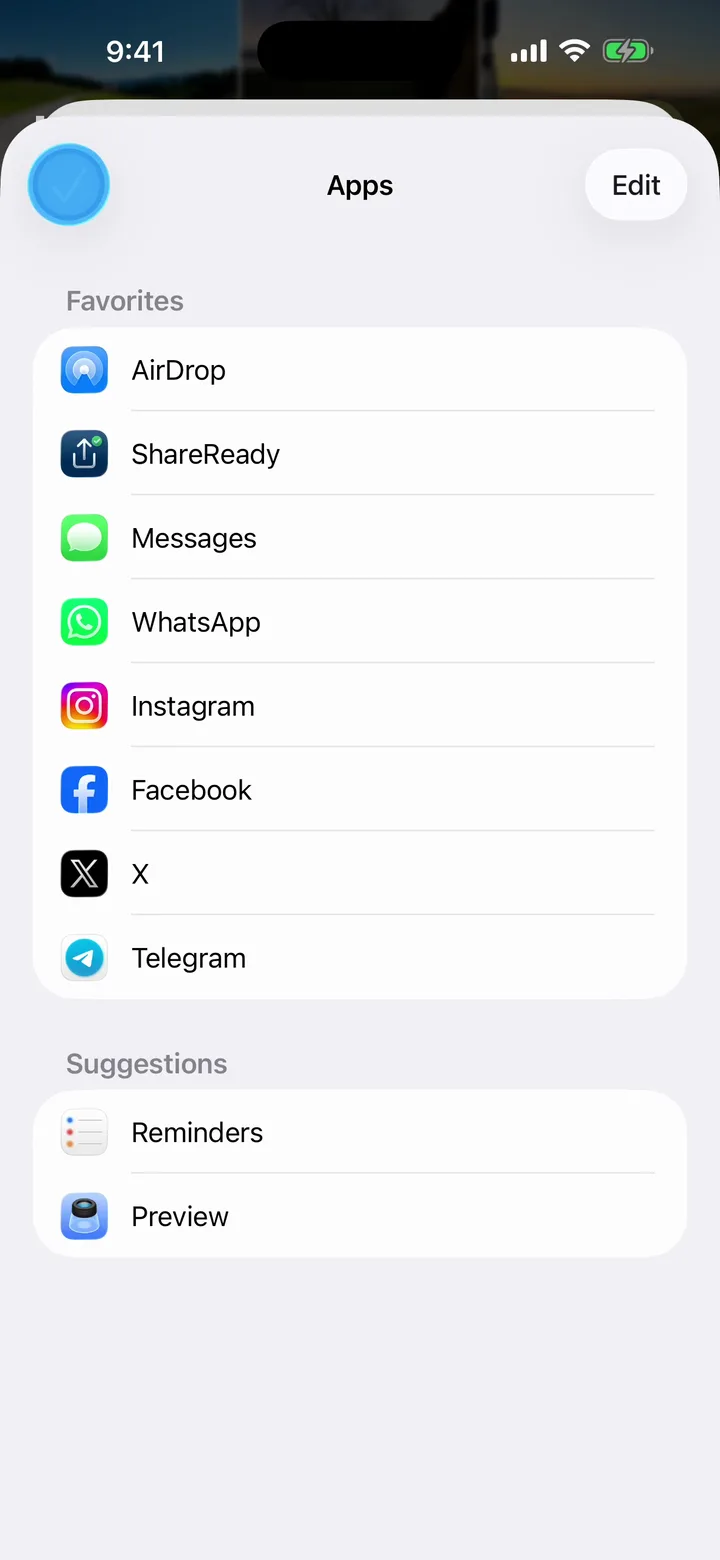
Close the Apps screen.
Back on the Apps screen, the list shows its final order. The check mark on the left returns you to the share sheet.
-
Done. ShareReady is pinned.
From now on the share sheet opens with ShareReady up front, one tap after Share.
ShareReady appears whenever photos are shared. It stays out of the sheet for videos and documents.
Questions, answered.
Why doesn’t ShareReady show up in my share sheet?
iOS places newly installed apps at the far end of the app row, behind More. Swipe to the end, or add ShareReady to your Favorites as shown above. If it is missing entirely, check that you are sharing photos: ShareReady handles images and does not appear for videos or documents.
Do these steps work for other apps too?
Yes. Favorites, the green plus and the drag order are iOS features. The same eight steps pin any app that appears in the share sheet.
Can I change the order of apps in the share sheet?
Yes, for your Favorites: in edit mode, drag the handles to arrange them, and the share sheet follows that order. Apps under Suggestions cannot be reordered. If your order keeps resetting, the app is still a suggestion, so add it to Favorites first.
Can I remove apps from the share sheet?
Yes. In the same edit mode, tap the red minus next to a favorite to move it back to Suggestions. The app itself stays installed.
Now put ShareReady to work.
Crop, sign, anonymize and convert. One flow, right from the Share button.
Get ShareReady